Connection
Configure your connection to the CasparCG server and OSC settings.
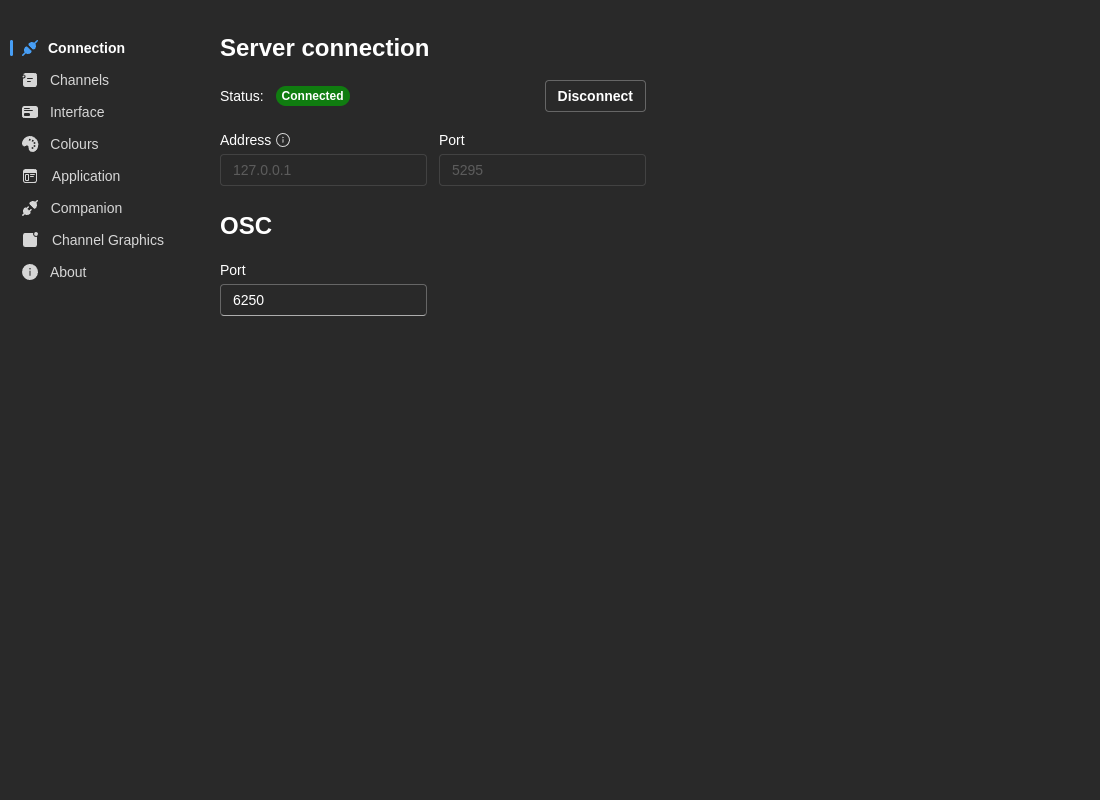
Server Connection
Server Address
- Default:
CG(hostname) - Description: The hostname or IP address of your CasparCG server
- Examples:
localhost- Server running on the same machineCG- Server with hostname "CG" on local network192.168.1.100- Direct IP address
Server Port
- Default:
5250 - Description: The AMCP port that CasparCG listens on
- Range: 1-65535
- Note: This is the standard CasparCG AMCP (Advanced Media Control Protocol) port
Connection Status
The connection panel displays real-time status:
- Connected (Green) - Successfully connected to CasparCG server
- Disconnected (Red) - Not connected to server
- Reconnecting (Yellow) - Attempting to establish connection
- Error (Red) - Connection failed with error
Status labels include the server address you're connected to (e.g. Connected to CG:5250), so it's clear at a glance which server is active.
Global connection stripe
While the app is connecting or reconnecting, an animated stripe appears at the top of the screen as a global indicator — visible from any view, not just the Connection panel. The stripe disappears once the connection is healthy.
Actions:
- Connect - Establish connection with current settings
- Disconnect - Close active connection
- Press Enter - Quick connect when editing connection fields
OSC Settings
OSC Port
- Default:
6250 - Description: Port for OSC (Open Sound Control) communication
- Range: 1-65535
- Use Case: For integration with external control surfaces and automation systems
tip
Changes to server address and port are saved when you click Connect. OSC port changes are saved immediately.
Troubleshooting
Cannot Connect to CasparCG
- Verify CasparCG server is running
- Check server address and port in Connection tab
- Test network connectivity:
ping [server-address] - Ensure firewall allows port 5250 (or your custom port)
- Check CasparCG server logs for errors